
Surfacing Our Open Banking Connection
For a partner to be able to fully submit an application to YouLend via API, we will require banking/sales data for the merchant.
For YouLend hosted journeys, YouLend gather this directly from the merchant - a merchant can either connect to our open banking provider Plaid, or upload .pdf bank statements.
For API integrated journeys, there are multiple ways partners can provide YouLend with banking data. If a partner already stores their merchant's banking data, we have endpoints to receive this and accept PDF & JSON formats. This guide will explain the process of surfacing our own Open Banking connection (powered by Plaid) to provide YouLend with bank statements via Open Banking.
When creating a lead via API, the 200 response in will contain a openBankingURL.
Response example (Create a lead)
{
    "leadId": "881fae34-8871-4678-b389-843888421501",
    "leadURL": "https://partners.staging-youlend.com/dashboard/youraccount/881fae34-8871-4678-b389-843888421501/companydetails",
    "signUpURL": "https://partners.staging-youlend.com/dashboard/youlendapisignup?emailAddress=mike.bloggs%2bcontract1%40youlend.com&leadId=881fae34-8871-4678-b389-843888421501",
    "openBankingURL": "https://partners.staging-youlend.com/apply/dashboard/secureplaidconnect?leadId=881fae34-8871-4678-b389-843888421501&country=unitedKingdom&companyName=OB Testing"
}
The openBankingURL will redirect a merchant to a YouLend hosted page, where we will ask the merchant to connect their main business bank account.
The partner can embed this URL within a button on their UI "To finish your application, please verify your bank account".
Handling completion in your application
When the hosted Plaid connection completes, the YouLend page sends a PLAID_CONNECT browser message to its parent or opener window. Your application can listen for this message to move the merchant to the next screen.
The message contains:
type:PLAID_CONNECTstatus:successorfaildata:leadIdandcompanyName
For example, a successful connection sends:
{
  "type": "PLAID_CONNECT",
  "status": "success",
  "data": {
    "leadId": "015fc773-8b95-4241-9bce-57702c04aabd",
    "companyName": "TESTS LIMITED"
  }
}
For an unsuccessful or cancelled attempt, status is fail.
Before handling the message, validate its structure and check that it comes from the expected YouLend origin and the window you opened or embedded.
On success, move the merchant to your chosen screen. Handle fail separately for unsuccessful or cancelled attempts. This message is available by default; no bespoke callback configuration is required.
If you open the connection in a separate tab, keep the original page open and preserve the new tab’s window.opener connection. A plain target="_blank" link does not preserve this connection by default.
Use PLAID_CONNECT to manage the merchant’s on-screen journey. Continue using ONB10058 to confirm banking data has been received before submitting Stage 1, as described below.
Submitting a lead for decision
In terms of fully submitting a lead via API when using our Open Banking connection, we recommend the below approach:
- Create a lead
- Send significant persons information to the Update significant persons endpoint
- Redirect the user to the YouLend hosted Open Banking page to connect their bank account
- You can receive immediate feedback of this step being completed once the user has connected their bank account via Open Banking by subscribing to the
ONB10058webhook event
- You can receive immediate feedback of this step being completed once the user has connected their bank account via Open Banking by subscribing to the
- Once you have received the success confirmation from the above webhook, send a
POSTrequest to the Submit stage 1 endpoint - Keep a track that if the lead has been submitted, that it's not submitted again. New banking data could be added against the lead, which would trigger a subsequent webhook event (ONB10058) to be sent.
Example payload ONB10058
ONB10058{
"EventCode": "ONB10058",
"Message": "Banking data received from the merchant",
"EventProperties": {
"EventId": "2f0d6285-cdd4-4666-a13e-60ee27781d6b",
"LeadId": "a06495c3-b88a-4ad2-a9e2-59b1926b20b6"
}
}
Good to knowRead our Introduction to Onboarding guide to learn more about the application process via API
Open Banking merchant journey
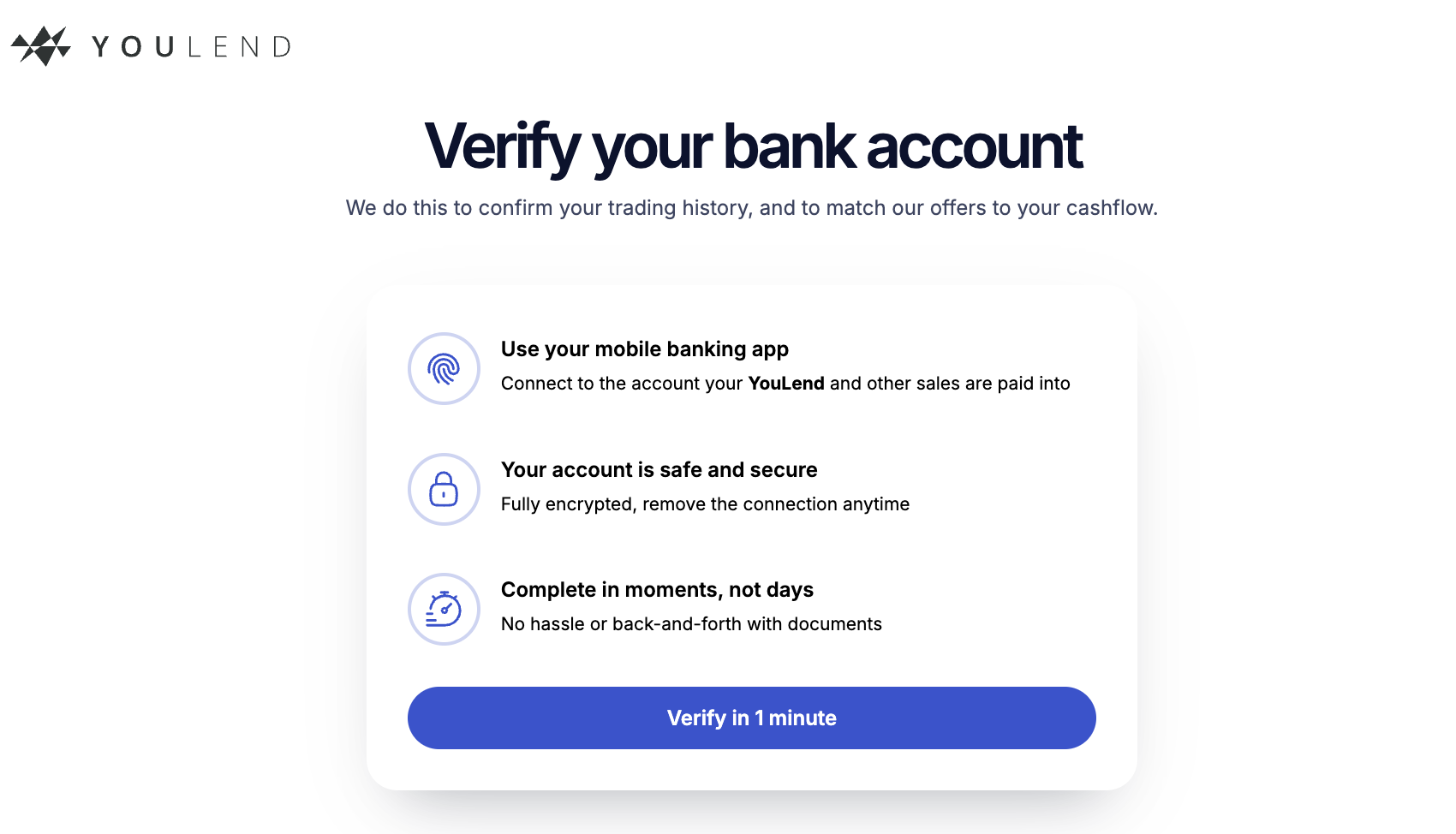
Merchant redirected to the Open Banking (hosted by YouLend) to connect/verify their bank account
Good to knowPartners can surface the Open Banking flow within an iframe / web-view, or open the journey in a new tab
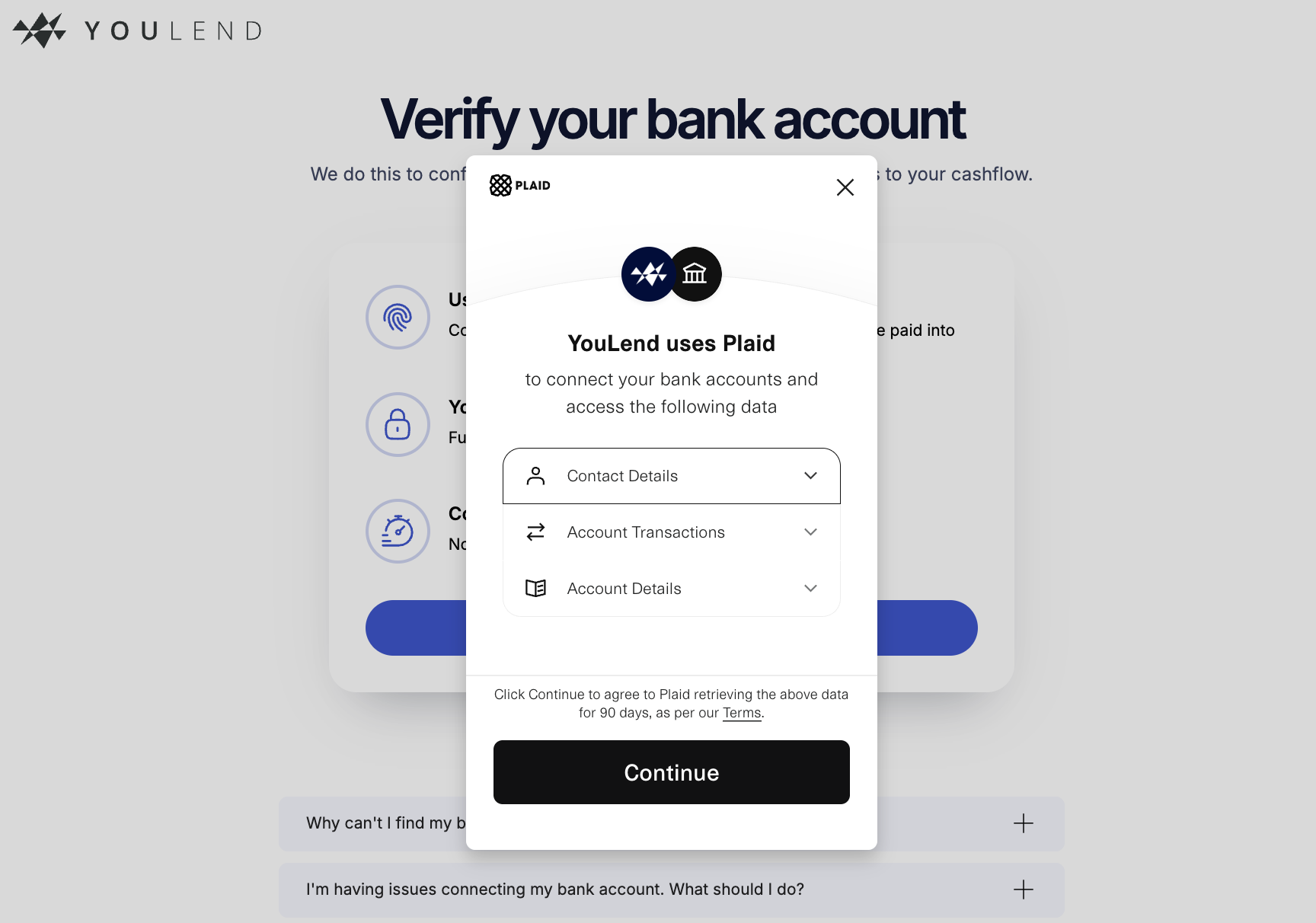
Disclaimer shown to the merchant
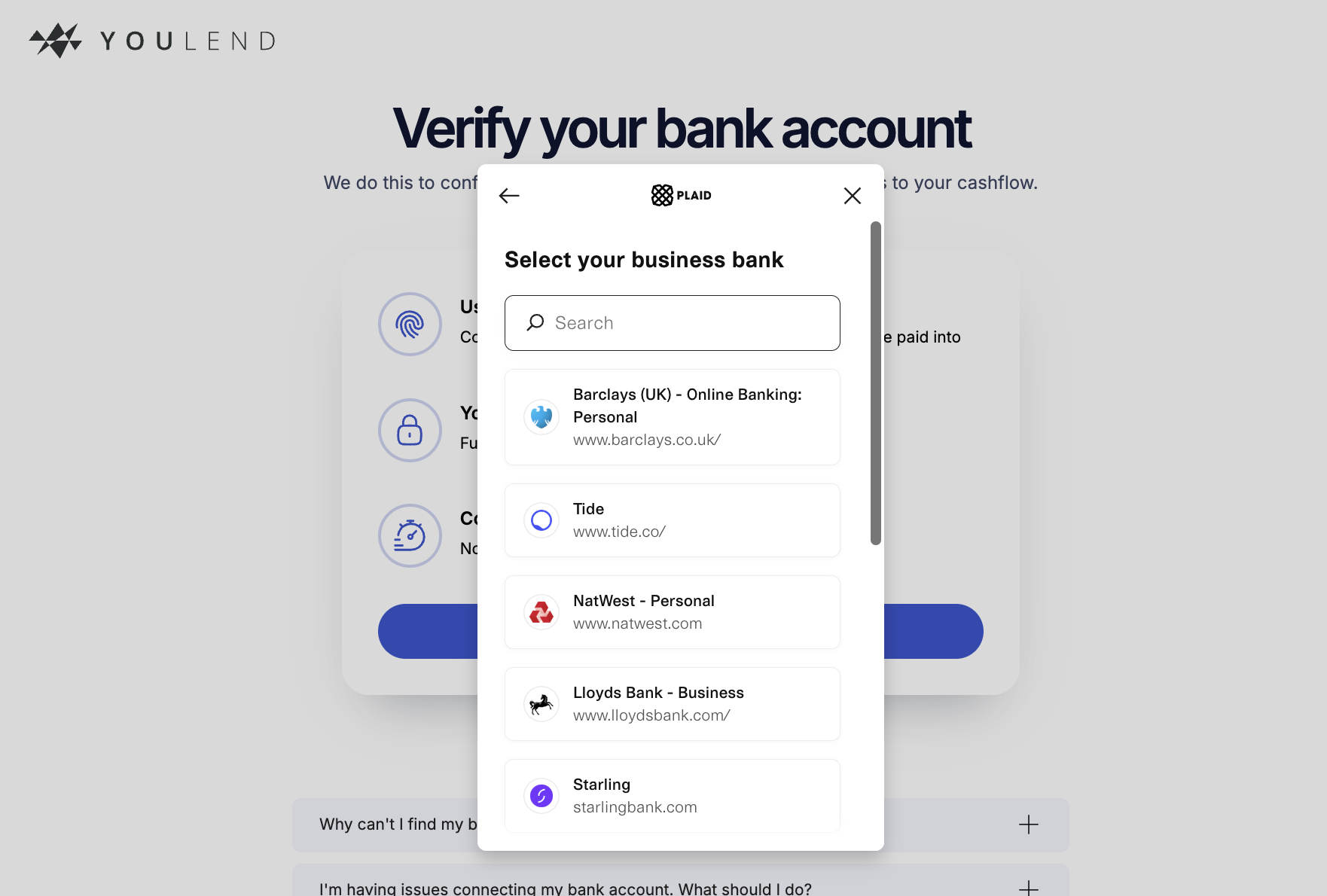
Merchant selects their bank bank, and completes the authorisation in the bank's app or browser page
Good to knowIf the user is completing the journey on their mobile device, they will be redirected to their banking app via deep linking. If the user is completing the journey on a desktop, they will be redirected to the browser / online banking equivalent
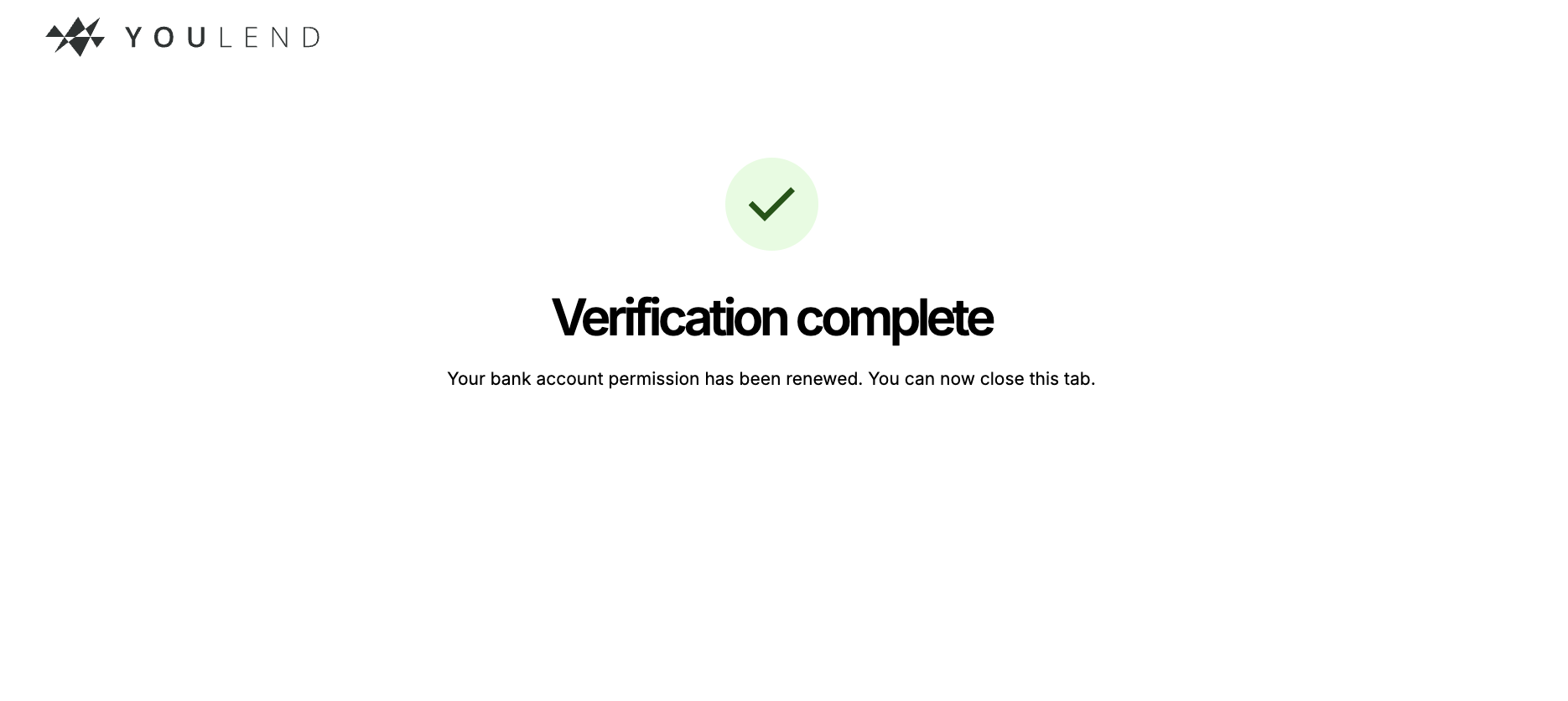
Once the merchant has connected their account, they will see the success message. If your application handles PLAID_CONNECT, it can move the merchant to the next screen. When using a separate tab, the merchant can then close the YouLend tab.
Updated 17 days ago