
Viewing & Submitting Leads
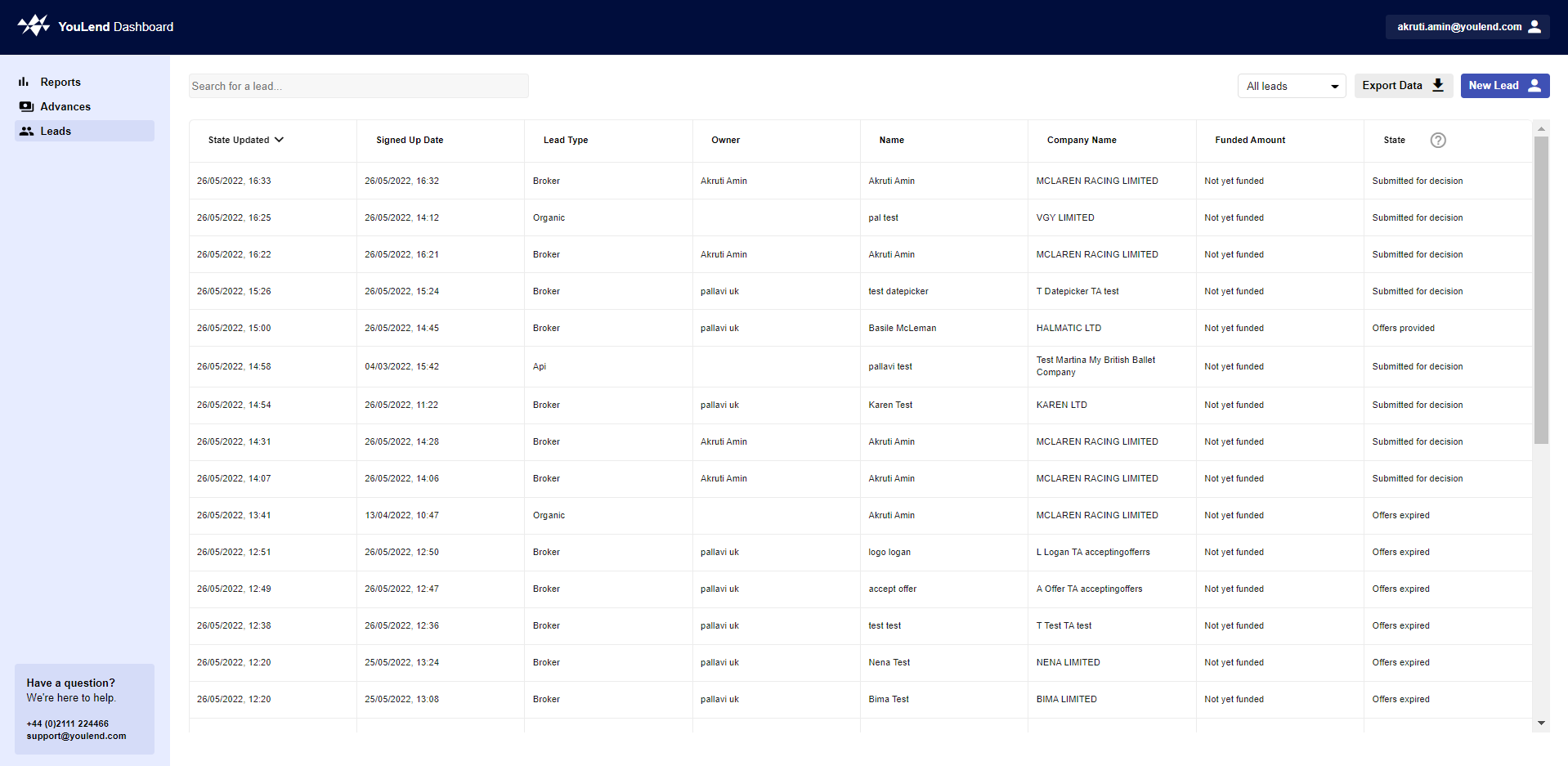
In the Leads tab, you can view a summary of all of your submitted leads along with the application information associated with the application.
You can also manually a submit a lead via the New Lead button located on the top right side.

Filtering data
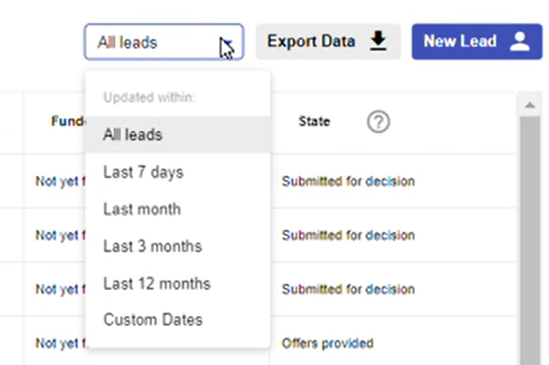
By default all leads will be shown in the table within the Leads tab however you can change the filter of the date range located on the top right side. This will also change the date range within the exported data as well.
Exporting data
You can export the table data using the Export Data button on the top right, it will export the filtered data only if you have a filter.

Example of the exported data
Submitting a Lead
To submit a lead, click on the New Lead button in the top right side of the Leads tab and fill out the form. A lead can be created after the first page of Company Details is filled out and saved, therefore you can save and return to an incomplete application later.
If you have your own Application ID or own CRM reference for an application, this can be inputted into the Partner ID (Optional) field. The Partner ID would assist in looking up a specific lead in exported data.
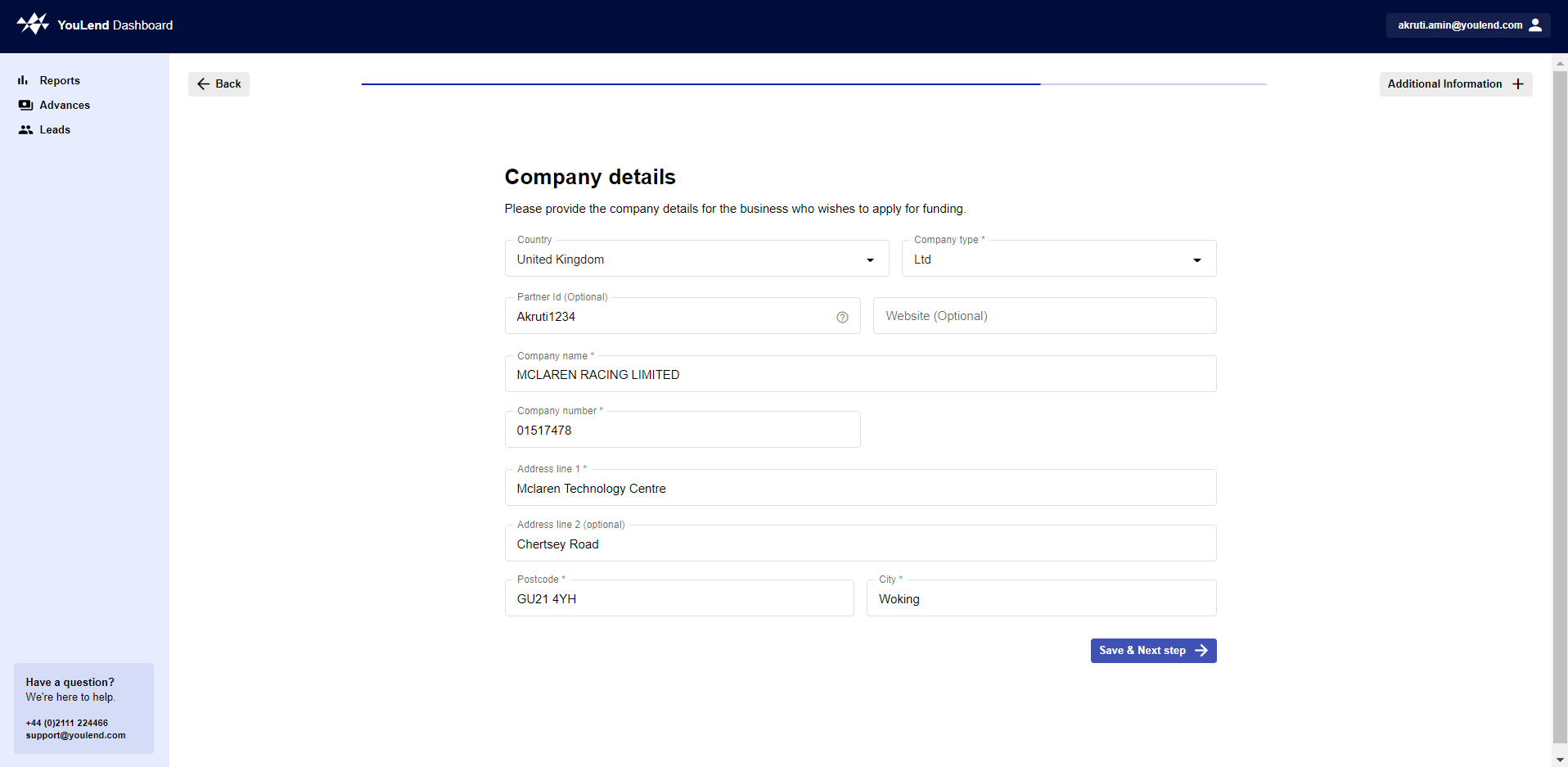
Add the company details
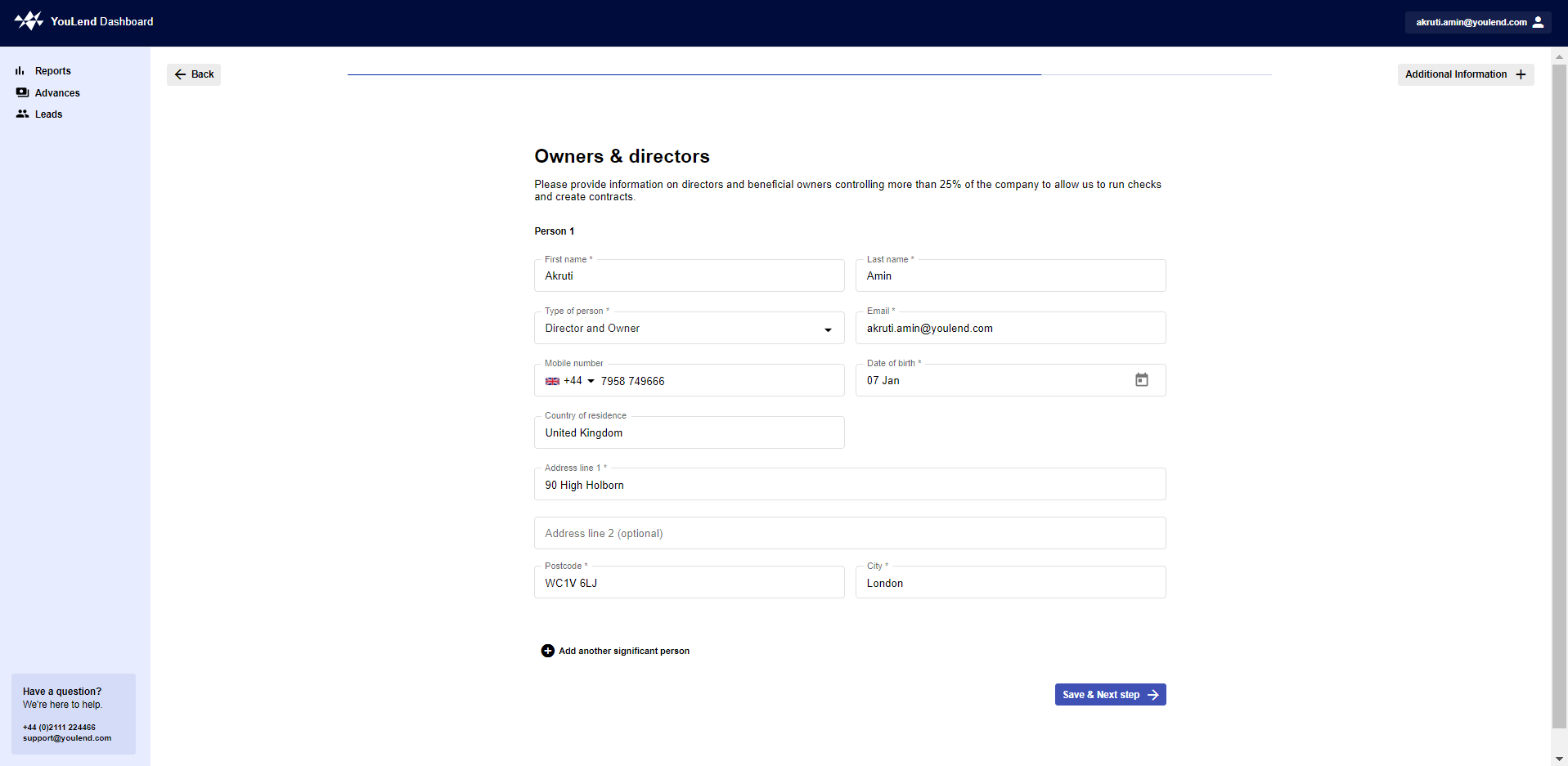
Add the shareholder / significant persons details
Good to know
- You can add 'Additional Information' (previously labelled 'TPI') onto the lead, it can be any set of identifiable data you want. There is also the ability add extra fields for you to capture
- Comments can be added onto the lead
- Both will be saved into a csv export from the Leads table. Additional Information will remain in the same format as previously and any values sent via API will be displayed in the csv too
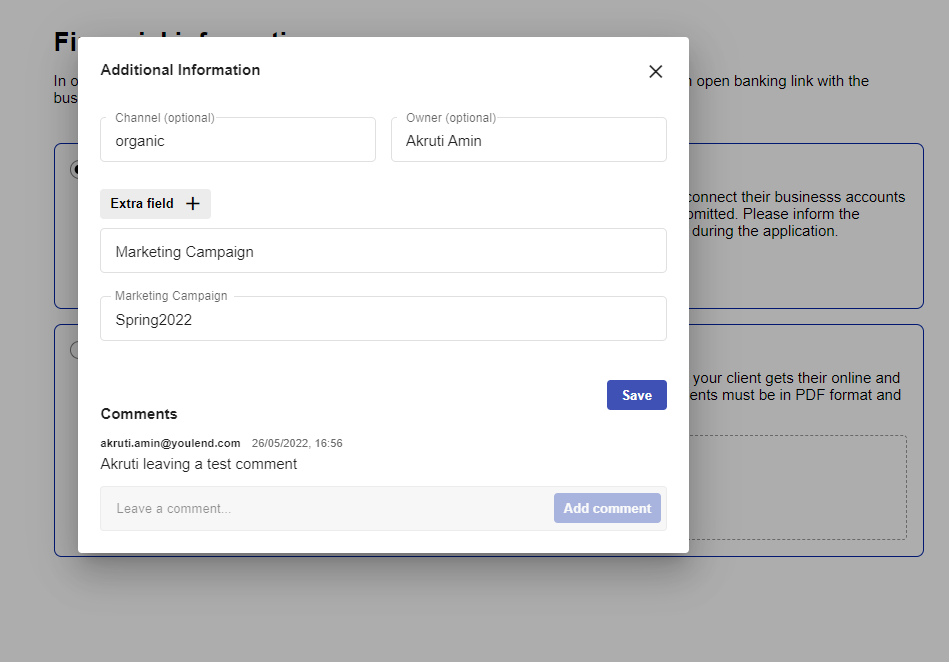
Example of the Additional Information

Example of the exported data
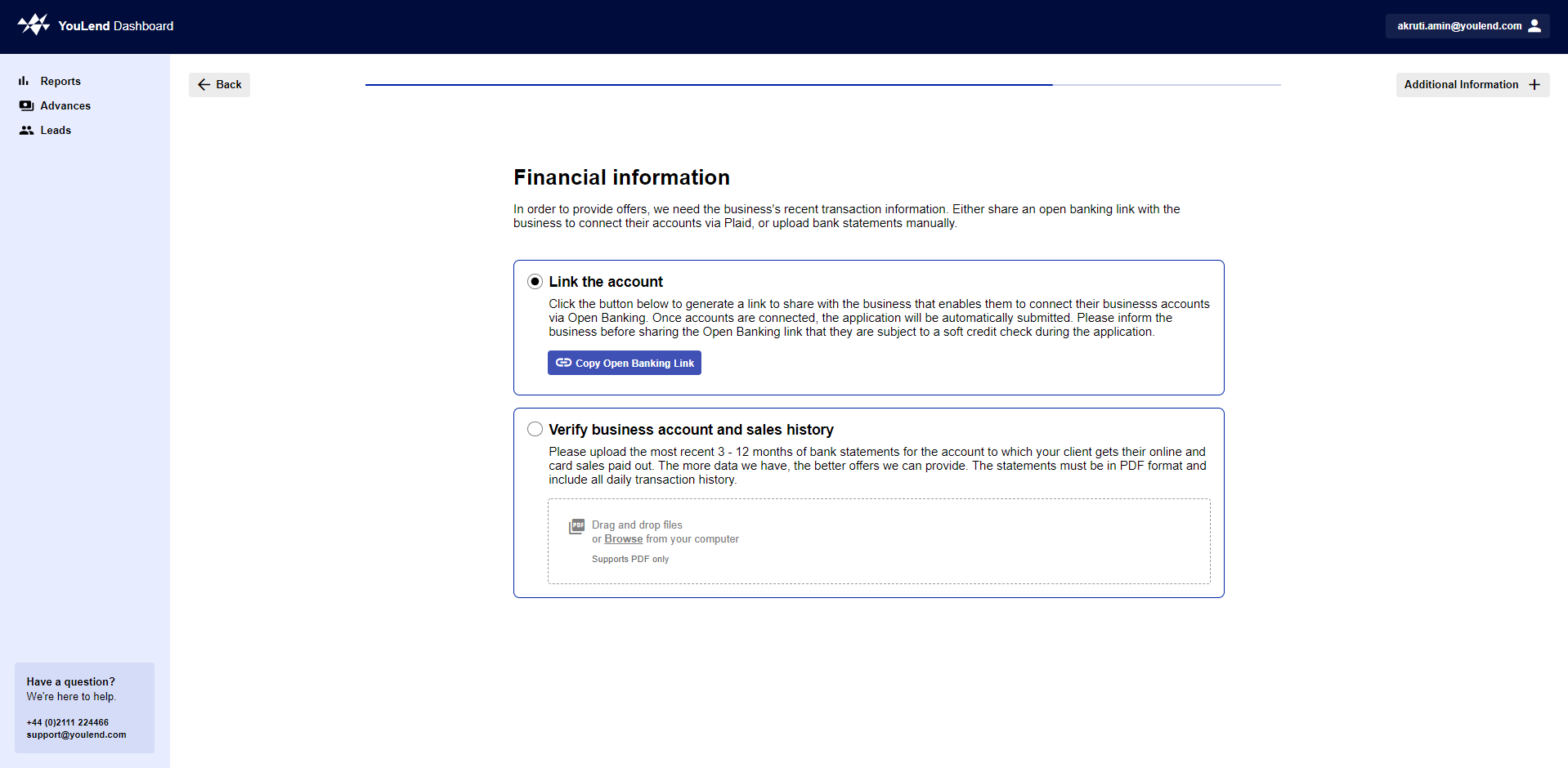
You have two options for providing Bank Statements:
- Send your customer the Open Banking link to connect themselves. Once they have connected, the application will be automatically submitting on our portal for you (so you don't need to log back in to 'submit'). You will be able to see the lead in the Leads table as submitted. Please note that the Open Banking link is not available for Belgium, Poland and Germany.
- Manually upload the documents yourself and then submit the application.
If you need to submit non-bank statements (e.g. proof of ID) then you can:
- Copy the Open Banking link
- Upload your documents and click 'submit'
- Your customer can still connect to Open Banking after that and we will receive the data from that connection on the lead
Updated 3 months ago